The Last.fm channel scrobbles your recognized tracks to your Last.fm profile.
Automatic scrobbling
When enabled, tracks are scrobbled automatically once the publishing delay is over. You can disable automatic scrobbling and scrobble individual tracks manually from the track menu instead.
Configuration
Find the configuration in the Channels tab → “Last.fm”.
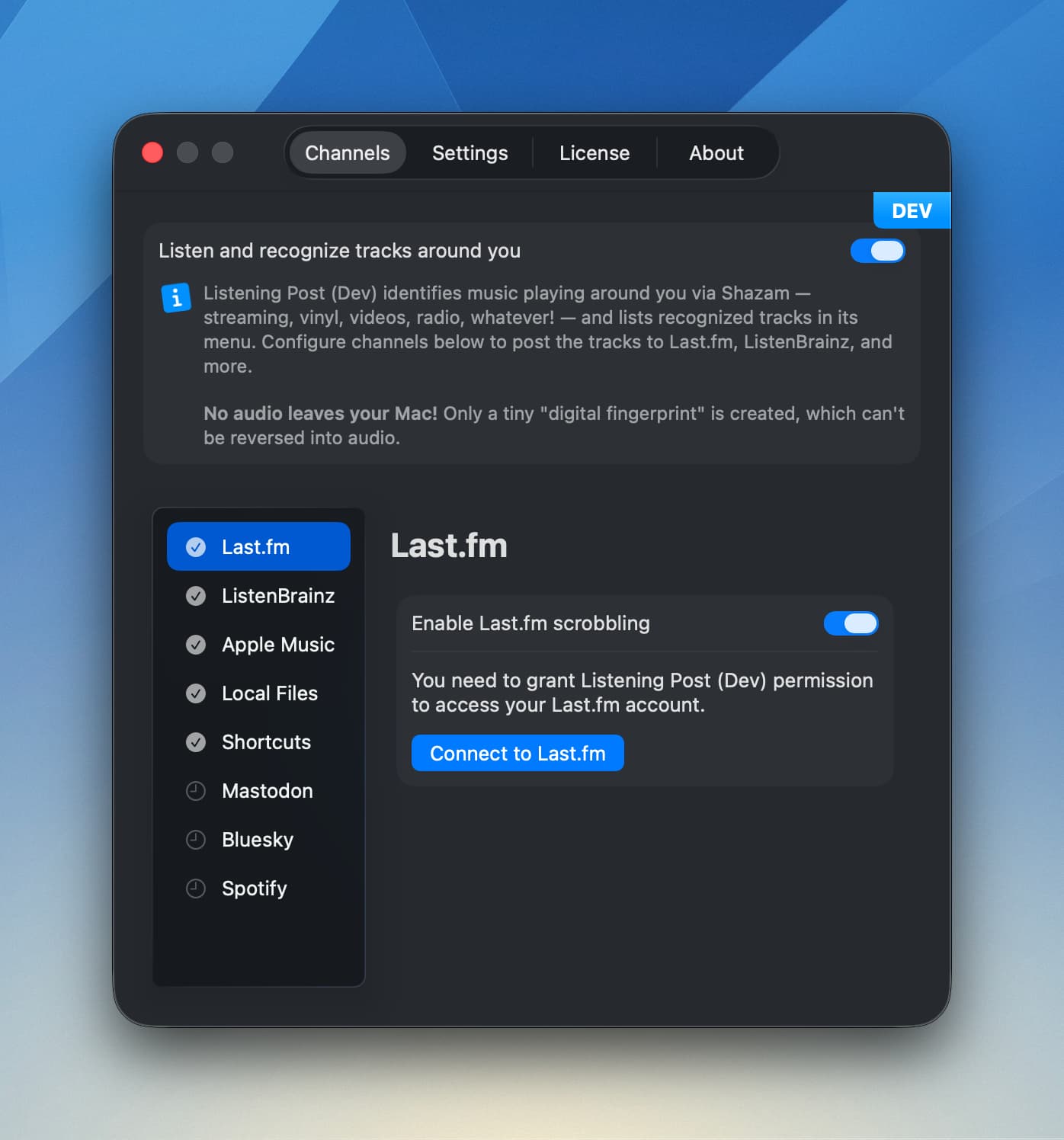
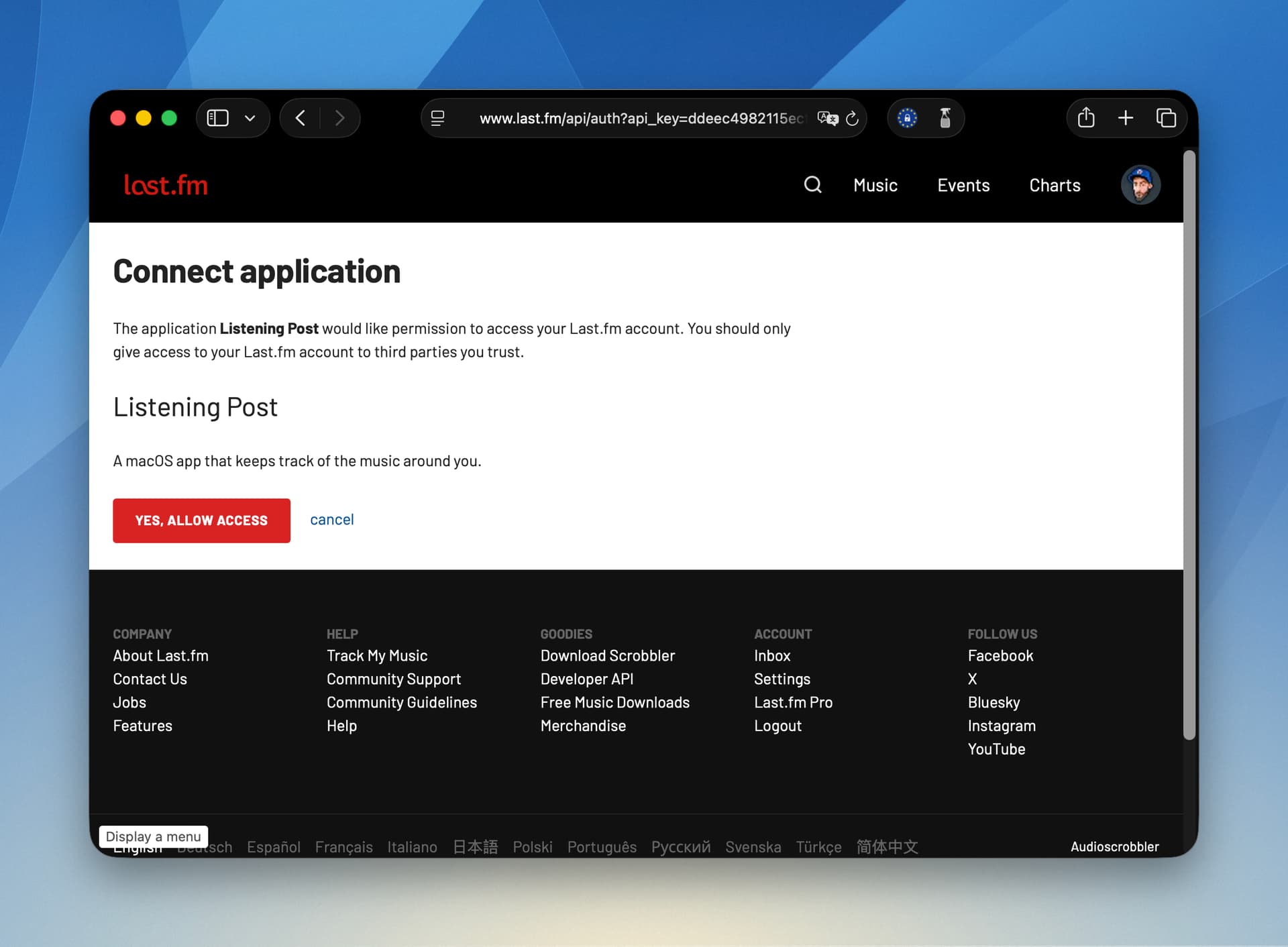
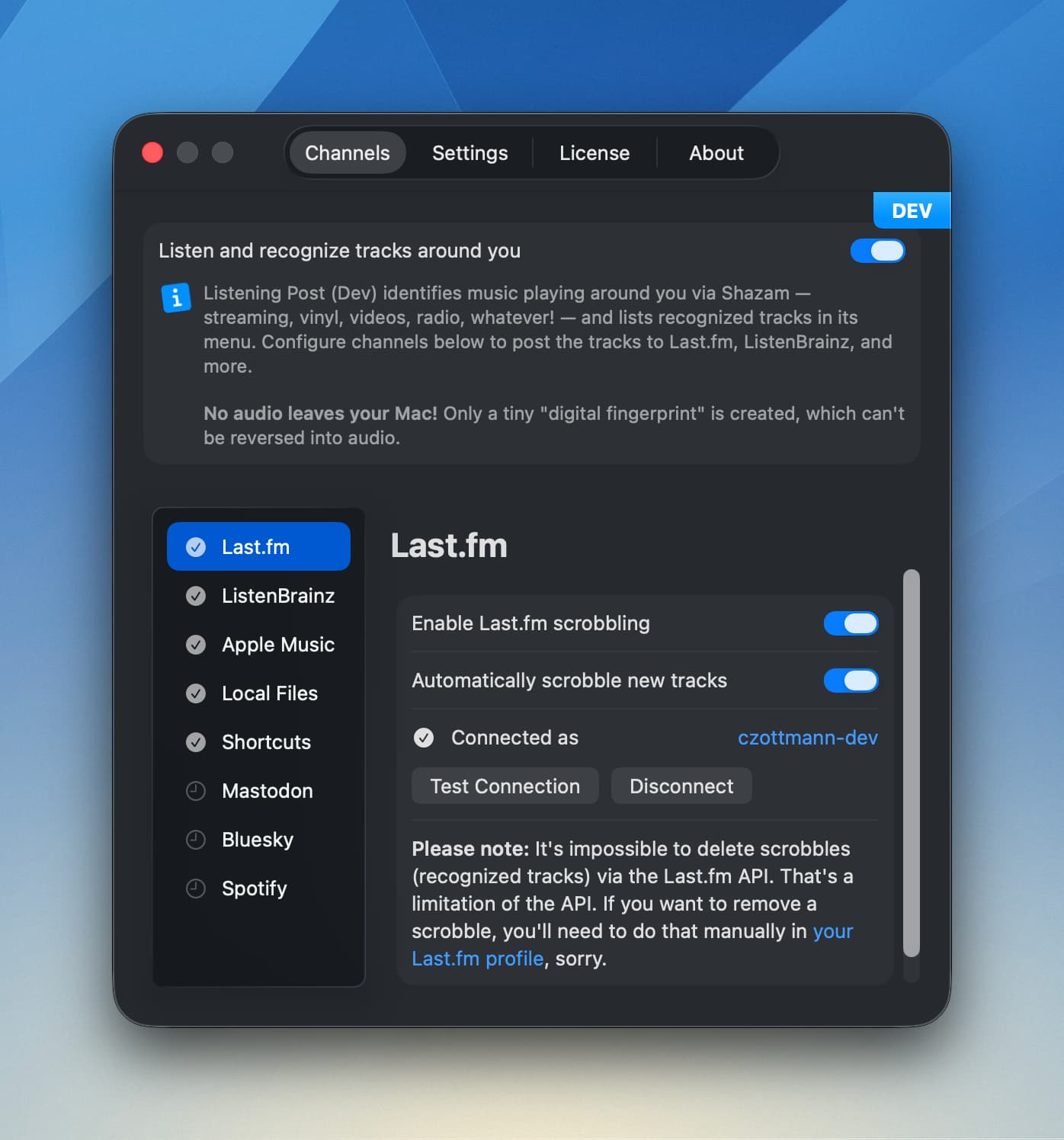
Click the “Connect to Last.fm” button, this will open their site in your browser. There, click the “Yes, allow access” button. The site will show you a green “You have granted permission to Listening Post to use your Last.fm account” notice. Go back to the app, which should now reflect the authorization:
Once connected, you’ll see your username and can test the connection or disconnect.
Track menu actions
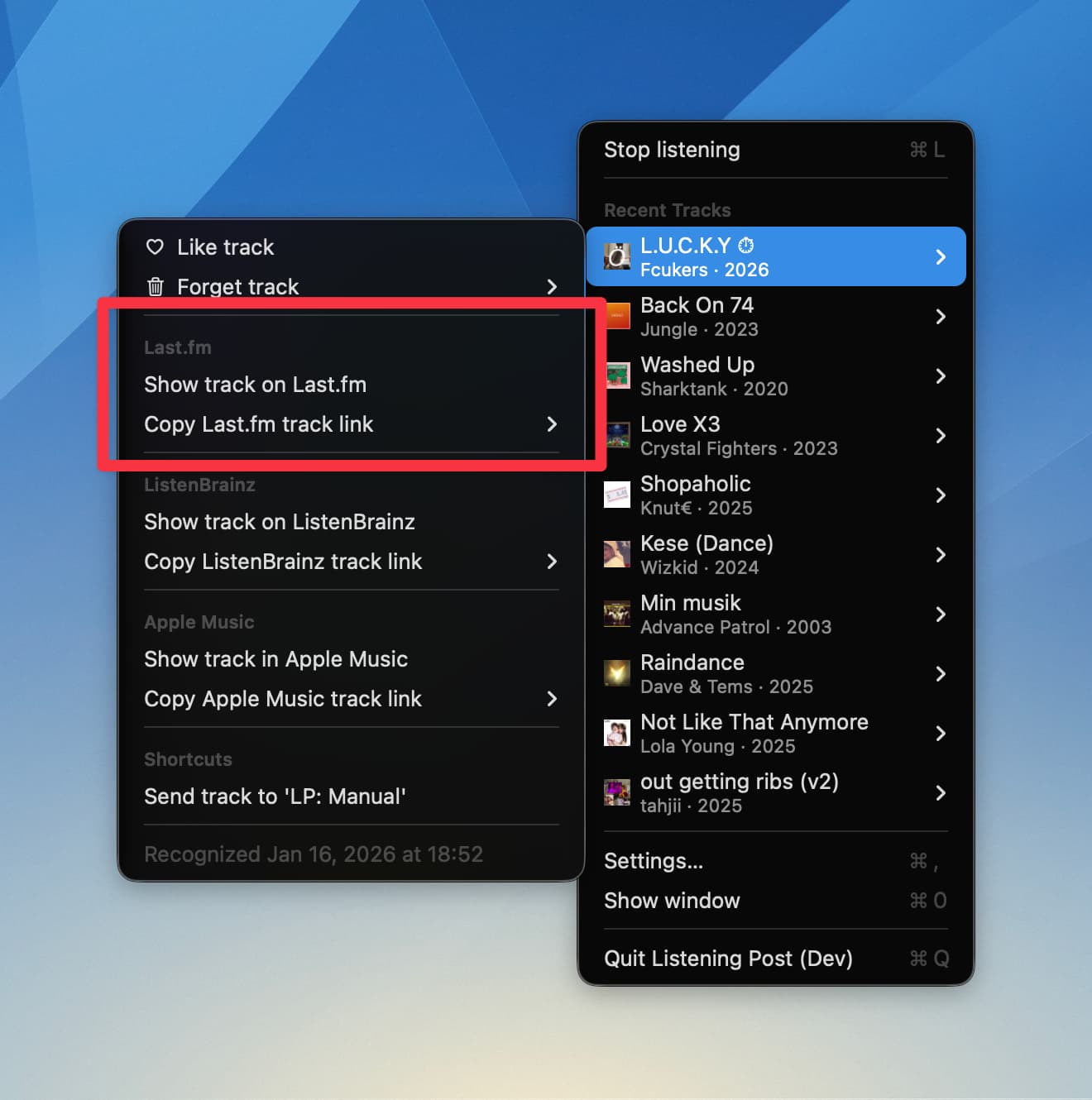
The track menu gives you quick access to Last.fm-specific actions:
- Show track on Last.fm: Opens the recording page in your browser
- Copy Last.fm track link: Copies the URL (plain or Markdown-formatted)
- Scrobble track: Manually send the track to Last.fm if auto-scrobbling is off (only available after the publish delay)
Liking tracks
When you like a track in Listening Post, it’s also marked as “loved” on Last.fm. Unliking removes the love.
Please note: There’s no sync back from Last.fm. If you manually love a track there, LP won’t know about it. Same thing if you unlove a previously loved track there: it’ll remain loved in Listening Post.
Deleting listens
When you forget (delete) a track in Listening Post, the corresponding listen will not be deleted from your Last.fm history, because the Last.fm API doesn’t allow that. In other words, there is no way for Listening Post to remove a listen from your Last.fm feed, because Last.fm built it that way.  Sorry.