The Files channel exports your recognized tracks to local files on your Mac. This gives you a personal archive of everything you’ve listened to, independent of any online service.
How this works
When a track is recognized and the publishing delay is over, it’s automatically appended to this month’s export file(s). Files are named by month, e.g., tracks-2026-01.jsonl, tracks-2026-01.csv.
The exported data includes everything Listening Post knows about the track: artist, title, Shazam ID, recognition timestamp, artwork URL, ISRC, genres, release year, plus any enrichment data (MusicBrainz ID, release year, service URLs) and whether you’ve liked the track.
Configuration
Find the configuration in the Channels tab → “Files”.
First, select an output folder. Click “Select Folder…” and pick where you want your exports saved. Once selected, you can toggle which formats to export.
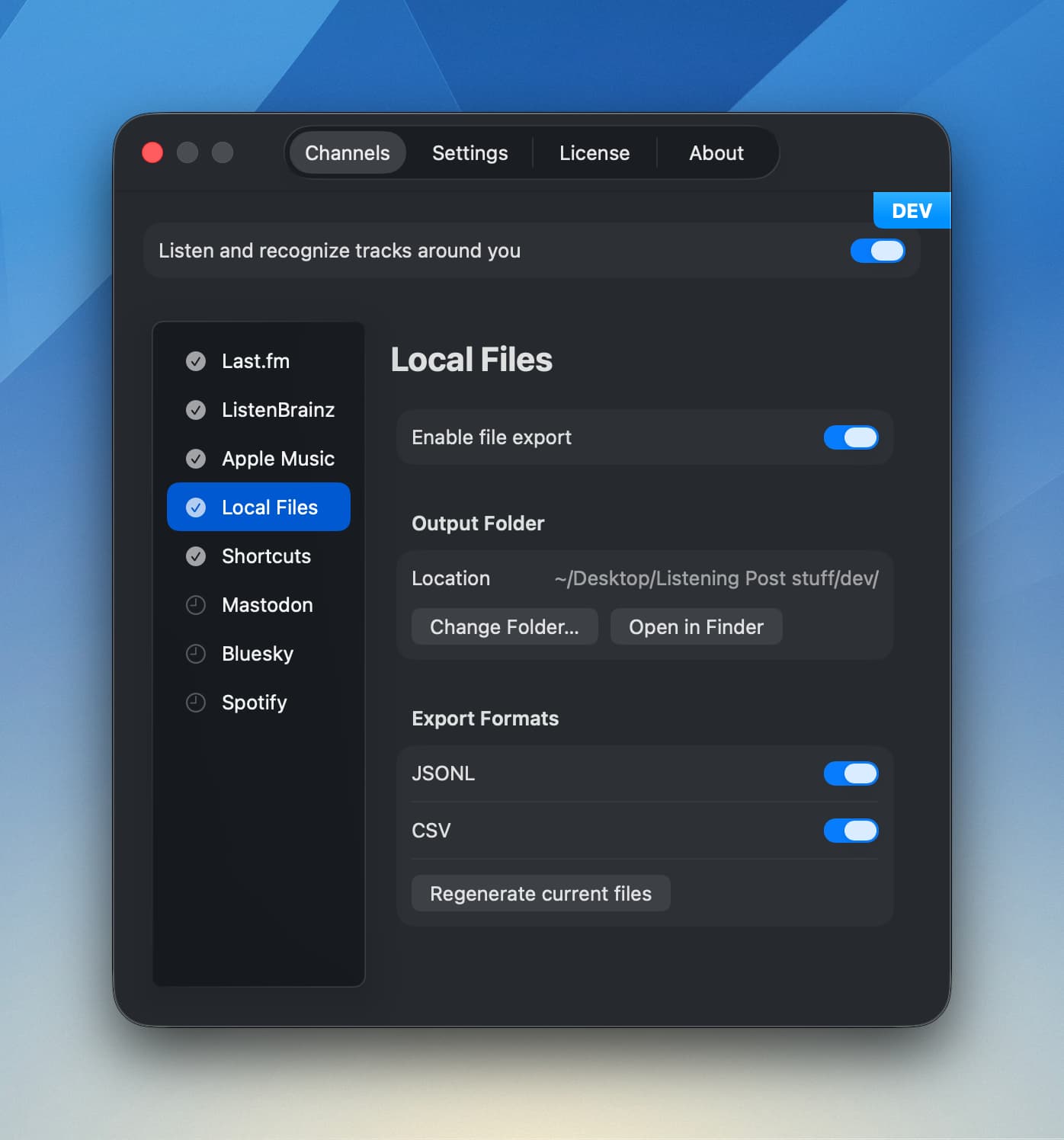
If your export files get accidentally deleted or corrupted, use the “Regenerate current files” button to rebuild them from the database.
Export formats
You can enable one or both formats:
- JSONL (JSON Lines): One JSON object per line. Great for scripting, data analysis, or importing into other tools.
- CSV: Standard spreadsheet format. Beloved by nerds everywhere. Opens in Excel, Numbers, or any spreadsheet app.
Liking and deleting tracks
Whenever you like or unlike a track, the export file for that track’s month is regenerated to reflect the change. Same thing when you forget (delete) a track—the file is rewritten without it. Your local files always match what’s in Listening Post.