The Mastodon channel lets you post recognized tracks to your Mastodon/ActivityPub profile.
Configuration
Find the configuration in the Channels tab → “Mastodon / ActivityPub”.
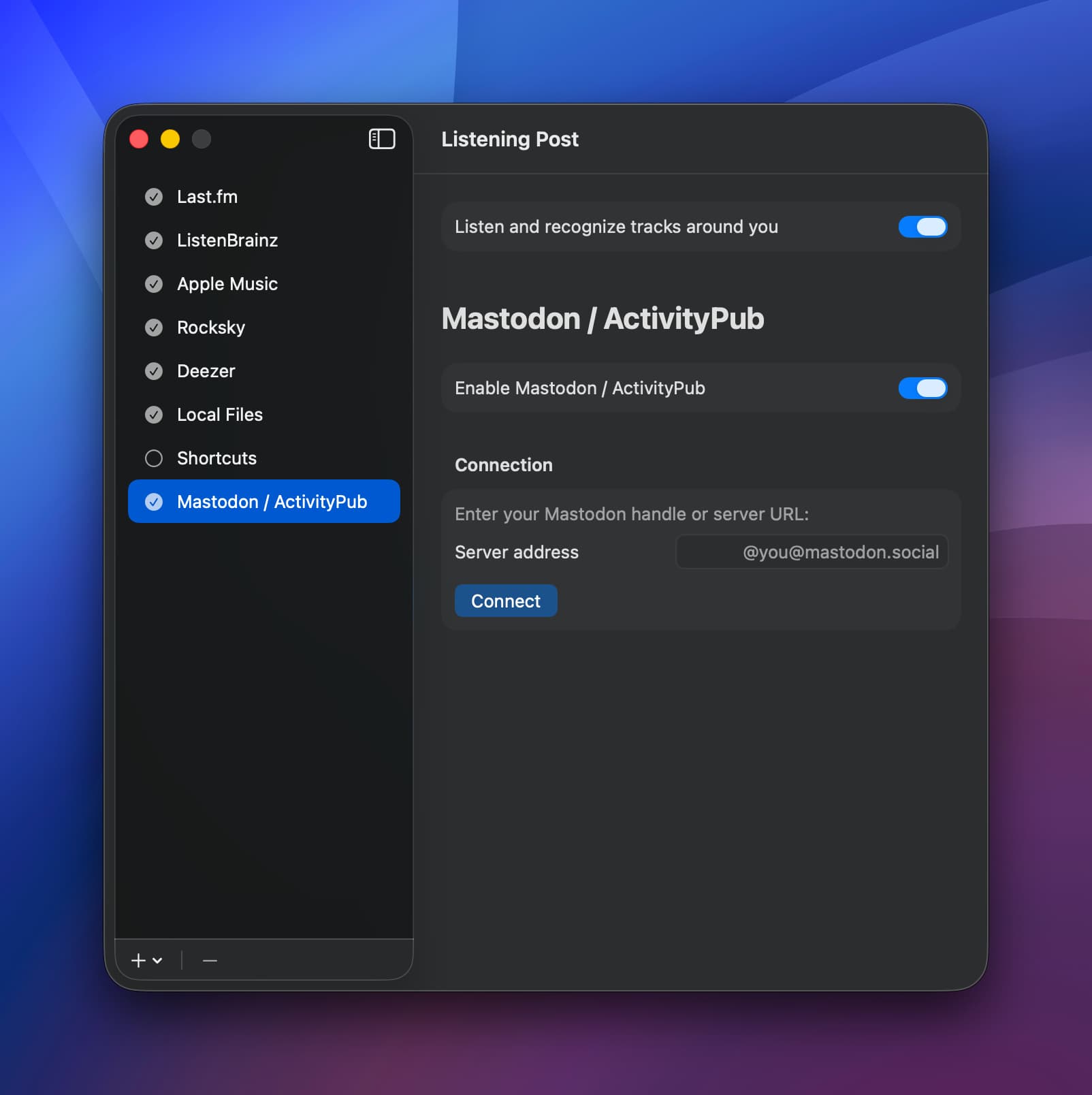
Enter either your ActivityPub handle (e.g., @username@example.com) or your instance’s address (https://example.com), then click “Connect”. This will open your Mastodon/ActivityPub’s profile in your browser, where you need to authorize Listening Post to access your account. Once you’ve done that, the app will show you it’s set up:
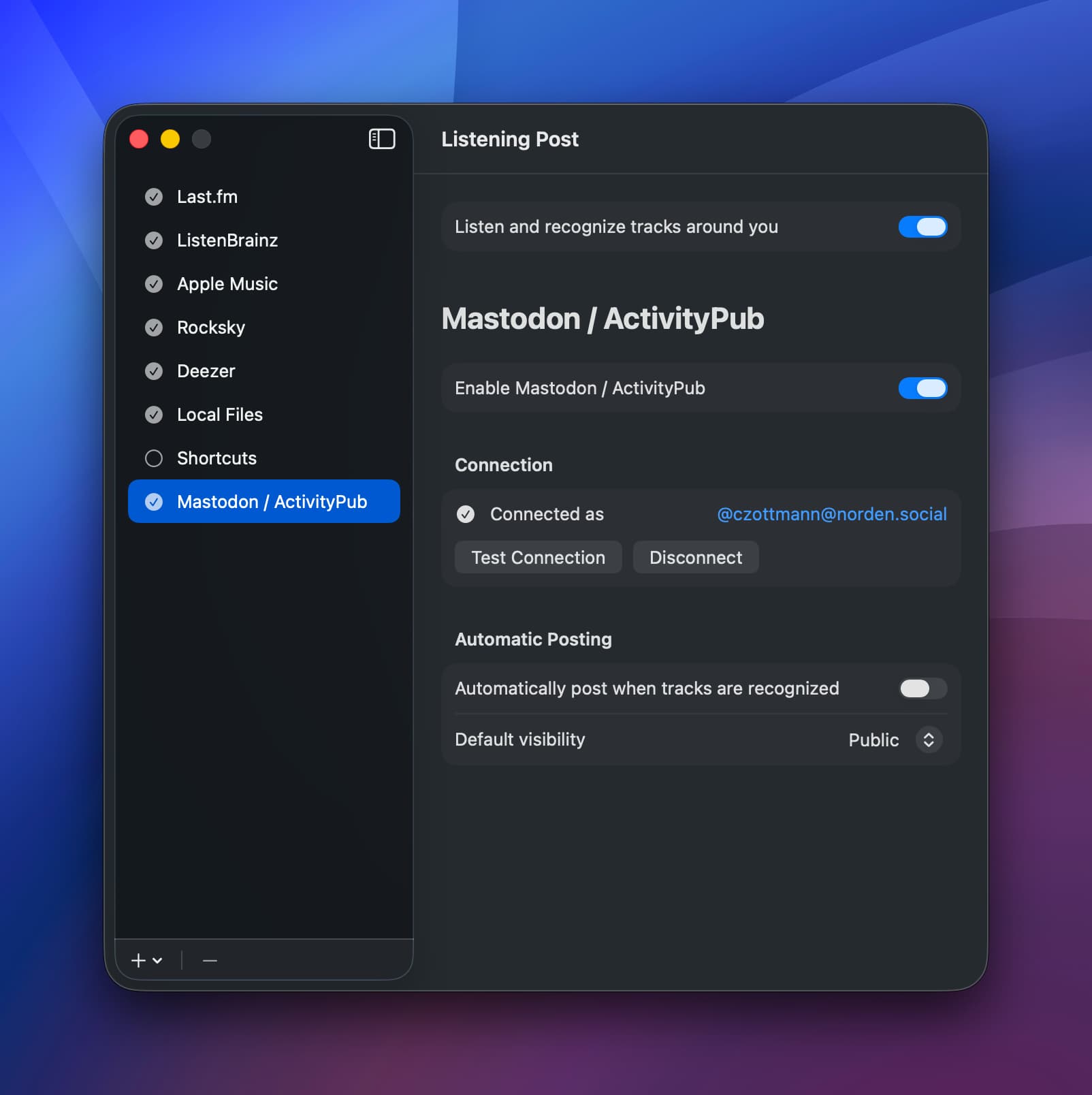
Automatic Posting
When enabled, a message about the new track is posted automatically once the publishing delay is over. If you enable this feature, you’ll see a template editor that lets you craft the new posts using placeholders. It’s the same editor you’ll find in the manual post feature, so read on.
Manual Posting
When the channel is correctly set up, the track menu will show a “Post to <your server>” item.
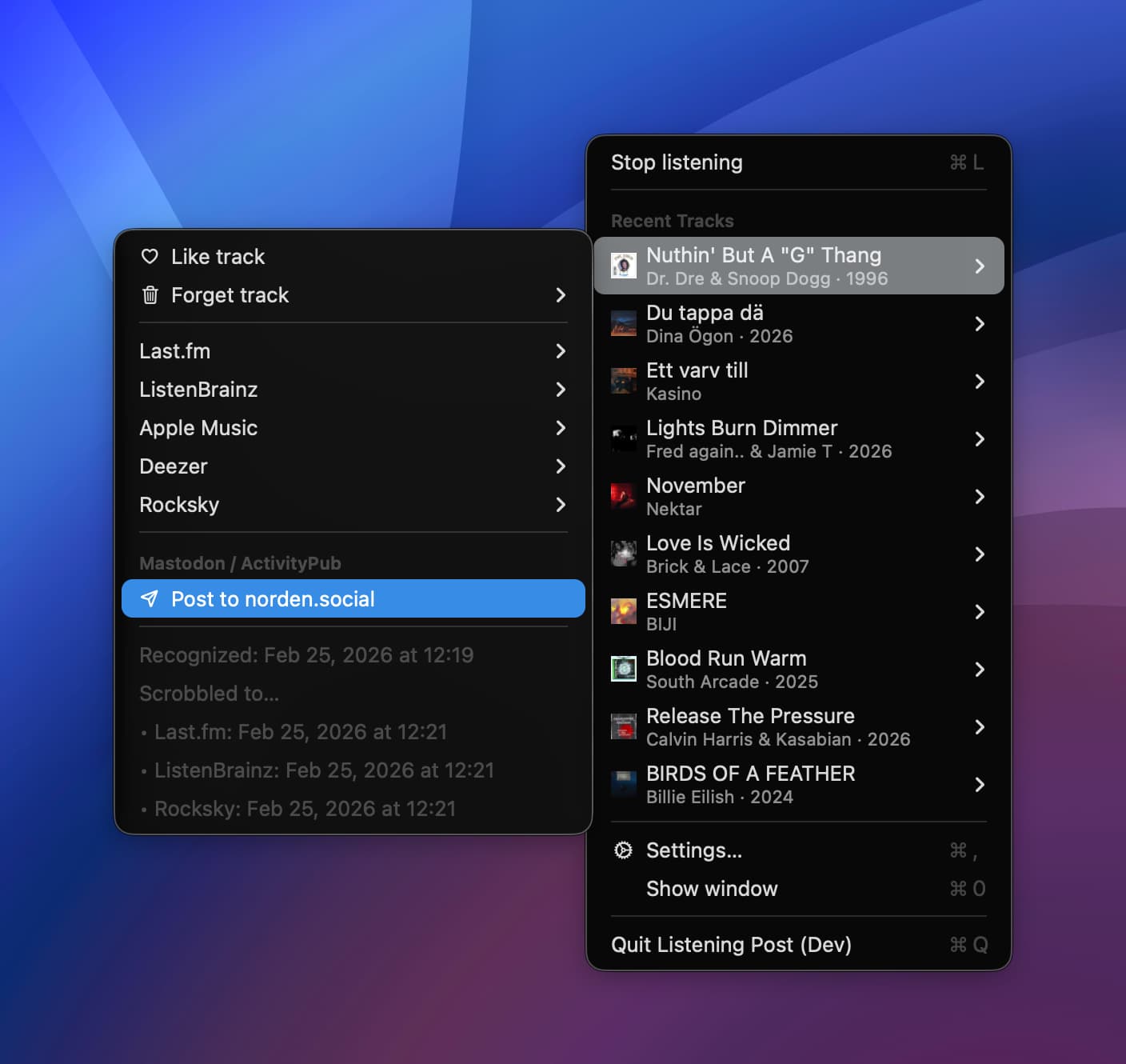
Clicking that menu item will open the post editor:
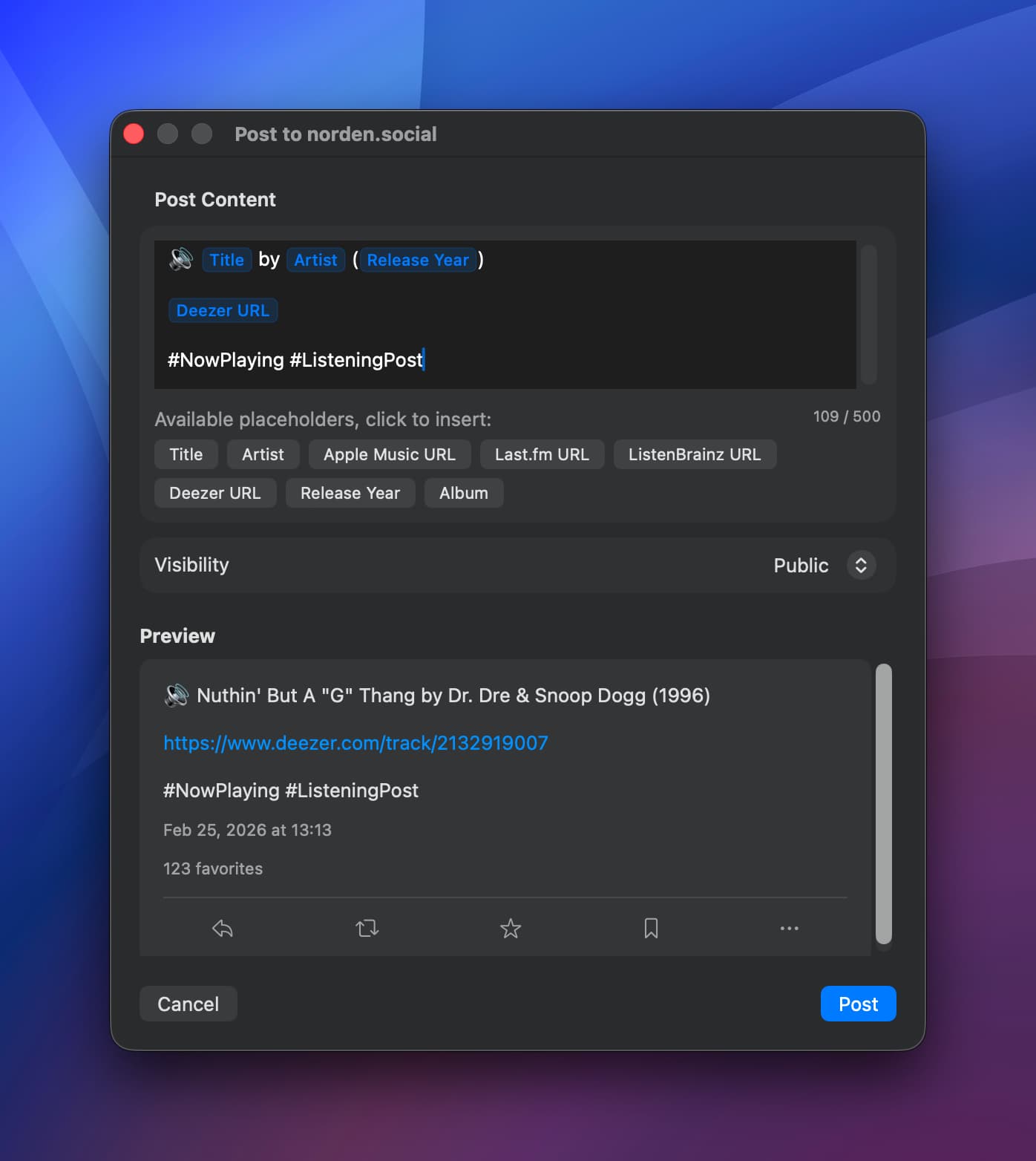
The editor supports placeholders like track title, artist, album, track links, etc. Only available info is added as placeholders, for example, if the Rocksky channel wasn’t able to fetch the track link from its server, there won’t be a placeholder for it.
Feel free to keep the
#ListeningPosthashtag in, I really could use more eye balls on the app

And this is how the post then appears in your Mastodon feed:
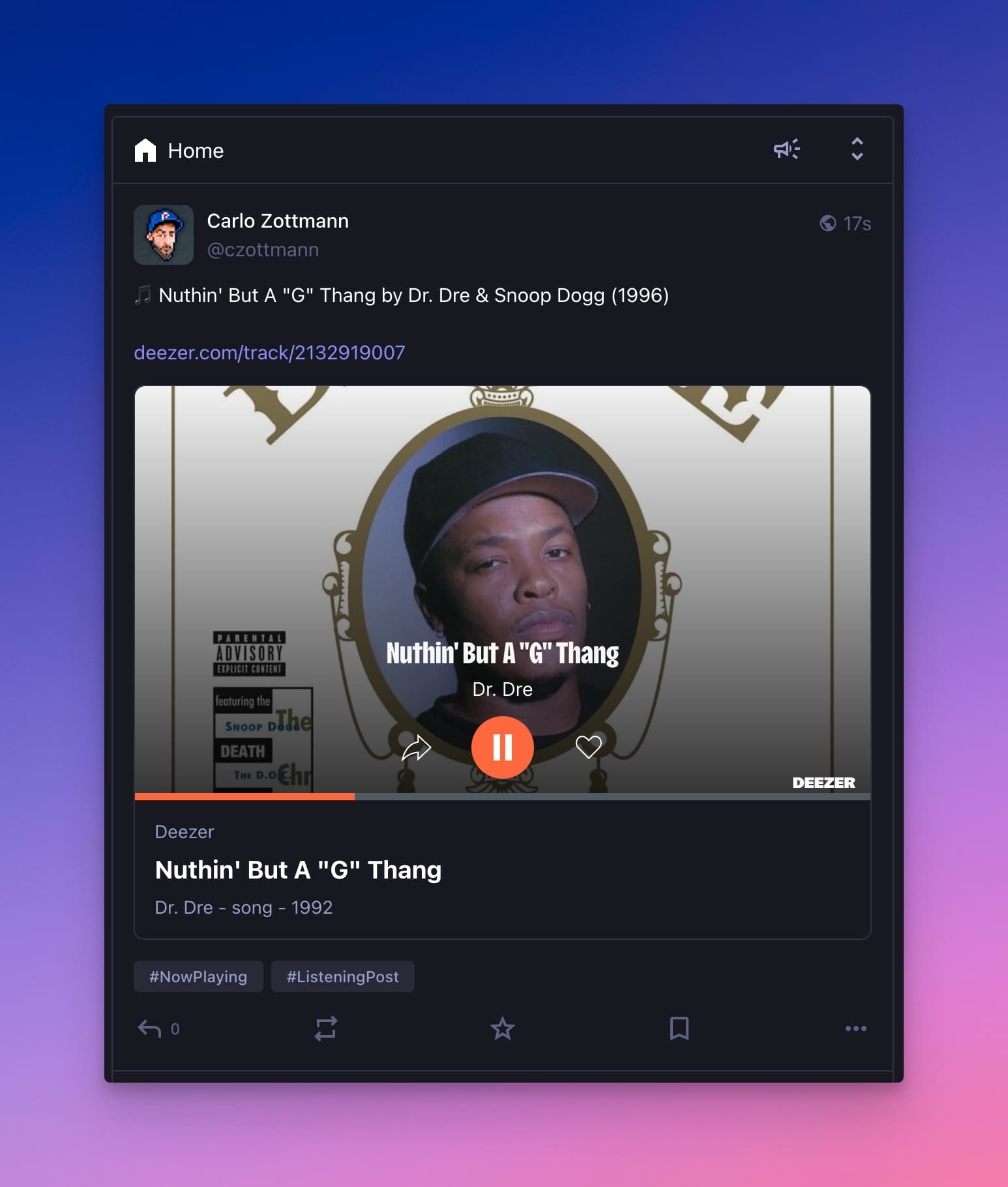
Remember that the preview varies between services, so an Apple Music URL will get a different preview than Deezer etc.